Phone controls
How to play on iPhone and Android: the on-screen buttons, aiming and the player menu.
Before you play
- Use Safari on iPhone and iPad, Chrome or Samsung Internet on Android, all up to date.
- Turn your phone sideways: MU plays in landscape.
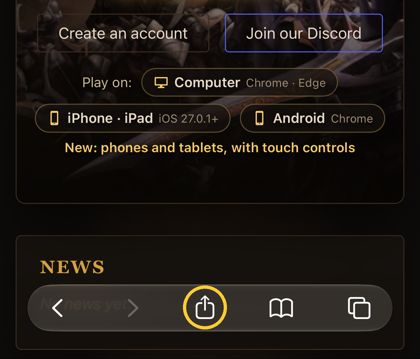
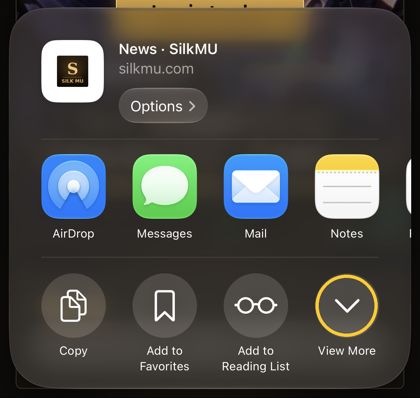
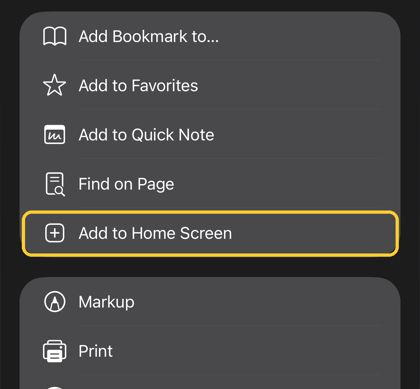
- For full screen, add SilkMU to your Home Screen (iPhone: Share → View More → Add to Home Screen; Android: ⋮ → Add to Home screen or Install app) and open it from there.
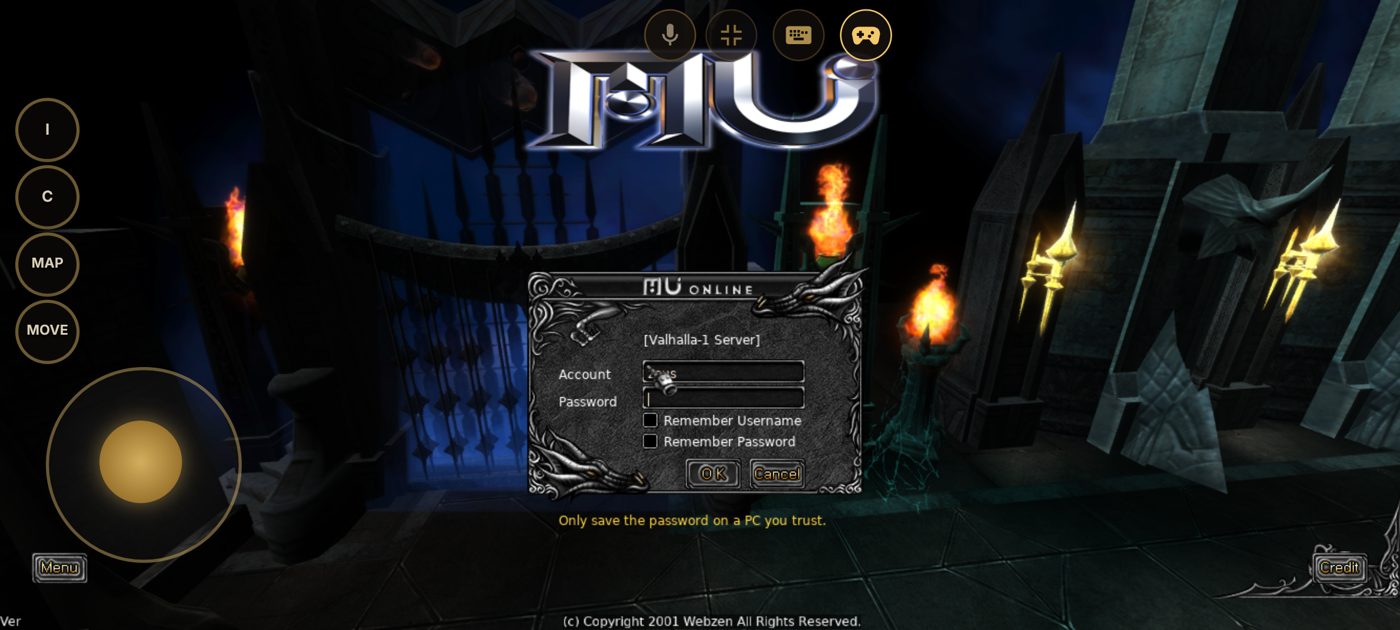
- Log in on the website first: on a phone the Play button appears after you log in, and the game then logs you in by itself.
The screen
- Tap the game: the same as a left click (walk, attack, pick up, talk to NPCs, use windows).
- Drag on the game: walk there, or drag items between windows.
- Long press or two-finger tap: a right click.
The buttons only show once you are in the world, not on the loading screen.
The buttons
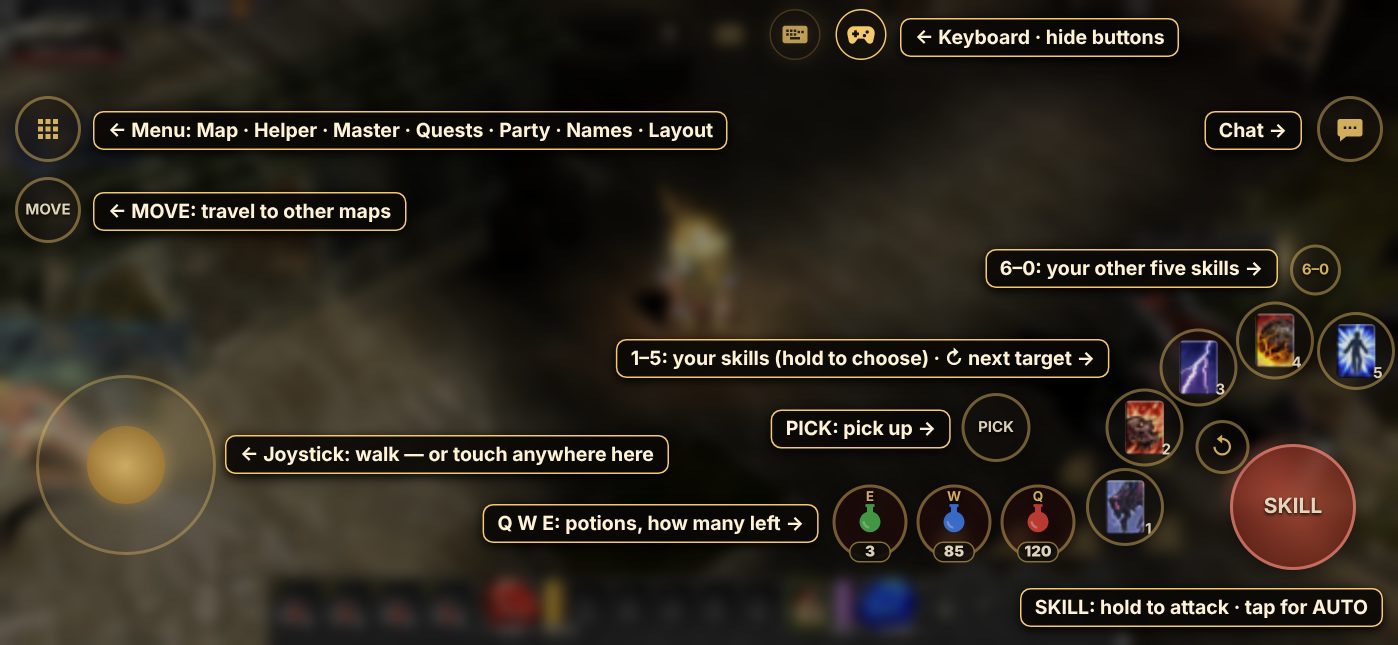
- Joystick (bottom left): walk in any direction. You don't have to hit it exactly: touch anywhere in the lower left of the screen and the joystick comes under your thumb. A quick tap there is still a normal tap on the game.
- SKILL (big red button): hold it to attack with your selected skill. It aims by itself (see Aiming). A quick tap turns on AUTO (see Aiming).
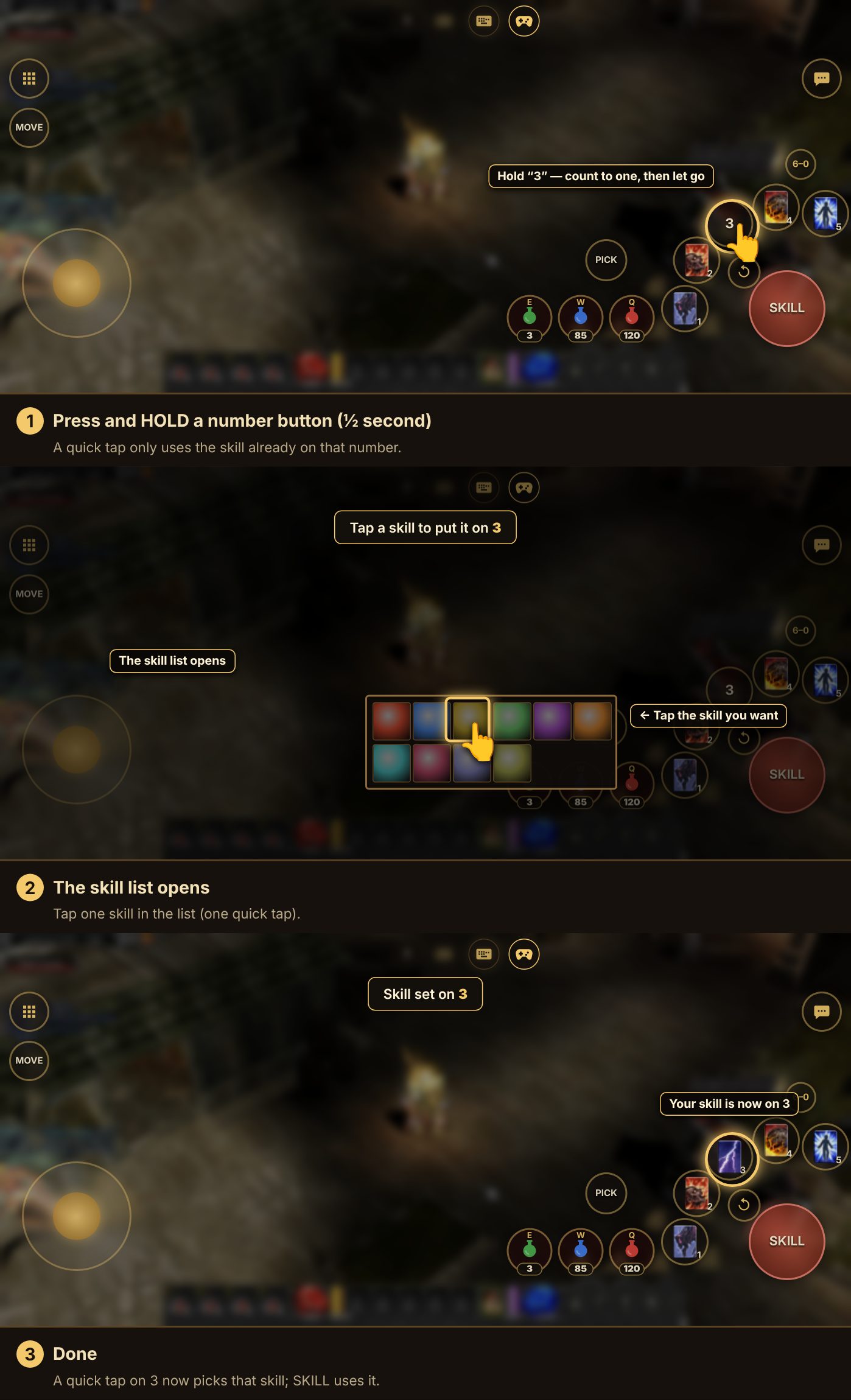
- 1–5: your skills, with each skill's picture. Grey: you can't use it right now. Blue ring: not enough mana. A shadow goes round while it cools down. Tap to switch skill. Hold one to open the skill list and choose the skill for that number.
- Q, W, E: your potions. The flask's colour shows the potion (red healing, blue mana, green antidote) and the number how many you have left. PICK: pick up the items around you.
- MOVE (top left): the move window, to travel to other maps.
- 6–0 (the small button above the skills): switches the five skill buttons to the skills on 6, 7, 8, 9 and 0, and back to 1–5.
- Menu (top left): Map, Helper (MU Helper, the automatic hunting helper), AFK (keep hunting after you close the game), Shop (keep your personal store open after you leave), Master (the master skill tree, once your character has its third class: Blade Master, Grand Master...), Quests, Party, Names (shows or hides the names of items on the ground) and Layout. Tap one and the menu closes. Inventory and character are on the game's bottom bar.
- Raven (in the menu, for Dark Lords only): your Dark Raven's orders. Normal; Random: attacks monsters around you; With me: attacks what you attack; Target: attacks the monster you aim at.
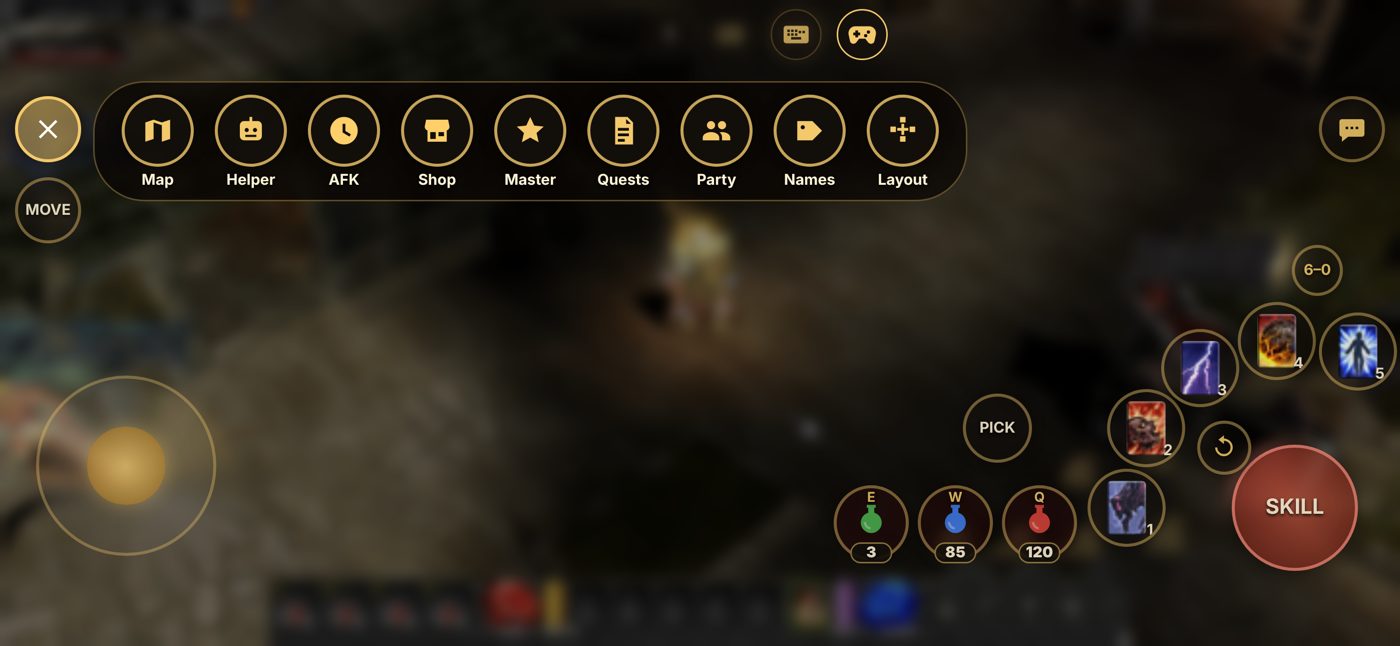
- Chat bubble: opens the game's chat with your keyboard.
- At the top: the keyboard button opens your phone's keyboard, the gamepad button hides or shows all the on-screen buttons.
When a game window opens (inventory, shop, trade...), the buttons on that side step aside so you can use it.
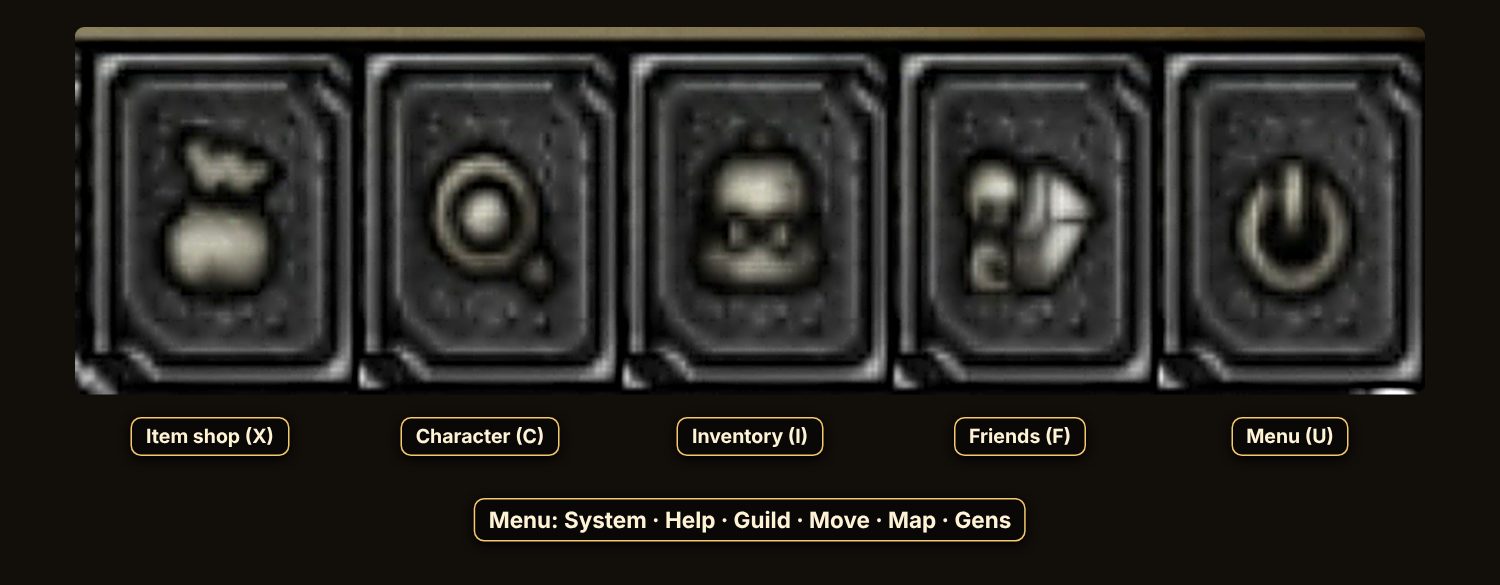
The game's bottom bar
- Q W E R: your potions and other quick items. The red orb is your life, the blue orb your mana, and 1–5 your skills.
- The five buttons at its right end, from left to right: the item shop (X), Character (C), Inventory (I), Friends (F) and Menu (U).
- Menu (U) has: System (options and exit), Help, Guild, Move, Map and Gens.
Putting a skill on 1–5
Putting an item on Q, W, E, R
- Q, W and E use healing, mana and antidote potions by themselves. To put another item on a key:
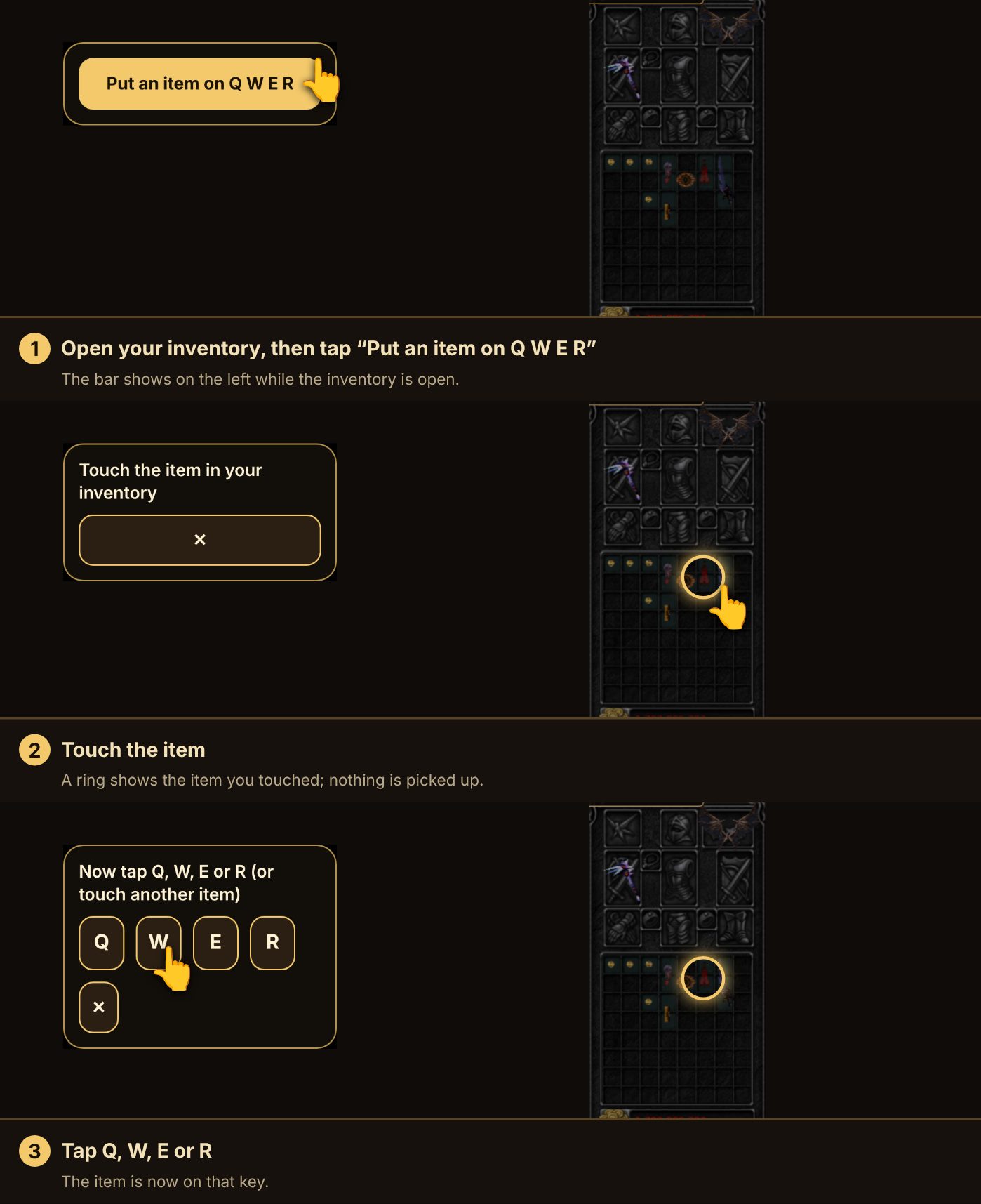
Aiming
- Auto-aim: hold SKILL and it attacks the nearest monster, then the next one when it dies.
- AUTO: tap SKILL once (don't hold it). SKILL glows and shows AUTO: your character fights by itself, monster after monster, without holding anything. Tap SKILL again to stop. AUTO also stops when you walk with the joystick, tap the ground or open a window. Tapping a monster keeps AUTO on and fights that one next.
- Lock a target: tap a monster. A gold ring follows it, and SKILL attacks only it until it dies or you tap elsewhere.
- ↻ (the small button next to SKILL): lock the next monster, further out. Tap again for the one after it.
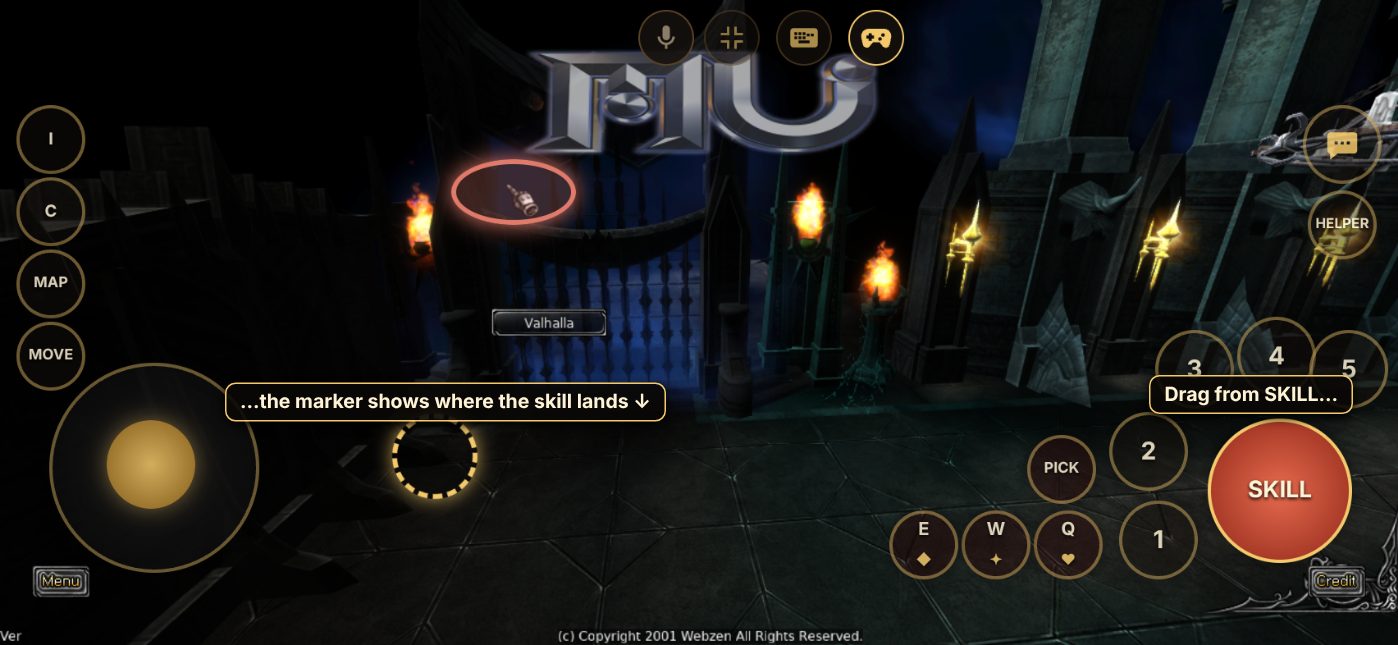
- Aim by hand (area skills): drag from SKILL. A marker shows where the skill will land; lift your finger to cast, drag back to the middle to cancel.
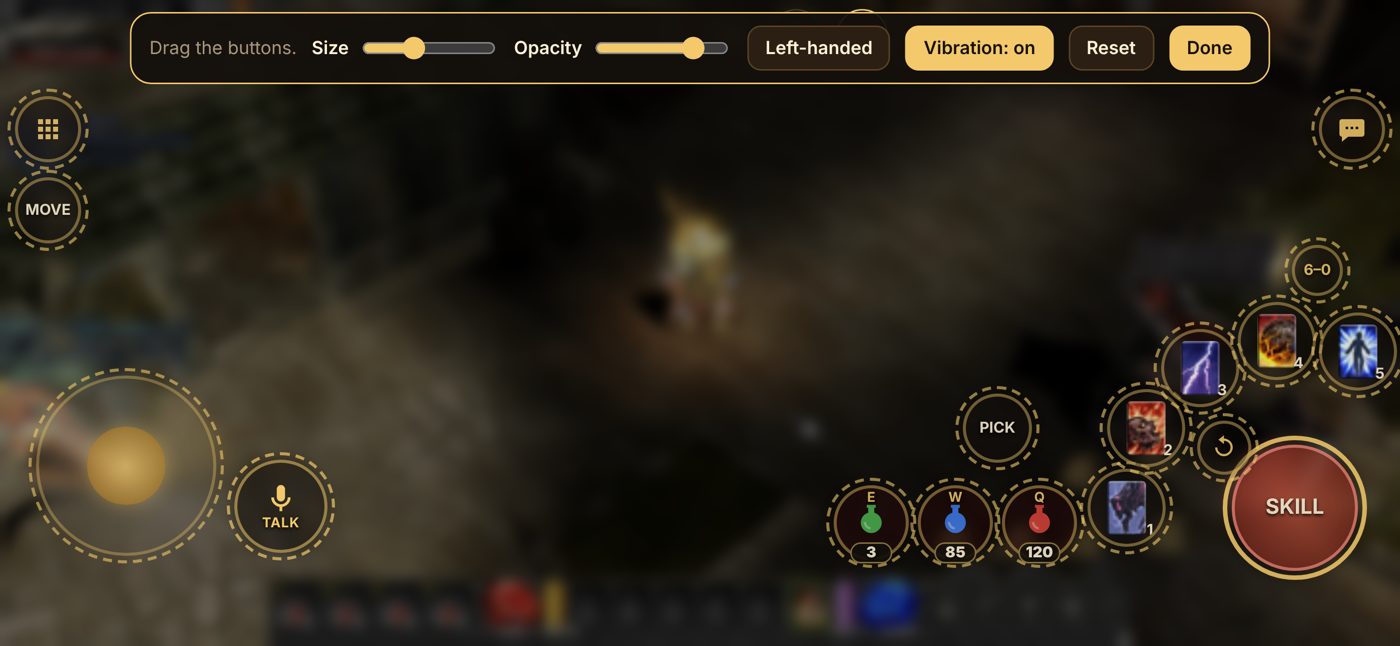
Your own layout
- Menu → Layout: drag any button where you want it.
- Size: tap a button, then move the Size slider. Opacity: how see-through all the buttons are.
- Left-handed: puts the joystick on the right and SKILL on the left. Vibration (Android): turns the short buzz on button presses on or off. Reset: back to the normal layout. Done: save.
- Logged in on the website, your layout follows your account to your other phones.
Other players
- Long press or two-finger tap on a player opens the player menu: Trade, Party, Guild, Whisper and more.
- MU Helper can accept party requests for you while it runs: in its settings, Other tab, tick Auto accept friend, Auto accept guild member or Auto accept party: everyone, then Save.
- On a phone, Menu → Cursor hides the game's pointer (the hand or sword that stays where you last touched) or shows it again. The phone remembers your choice.
- Camera zoom: on a phone, put two fingers on the game and move them apart to come closer or together to see more. On a computer, press F10 once to unlock the zoom, then use the mouse wheel (F11 puts the view back).
- Master skill tree (after the 3rd class, e.g. Blade Master): open the Character window (C) and tap the Master button at its bottom. On a phone the big gold ✕ at the top right closes it (and the cash shop, options and help too).
Voice chat
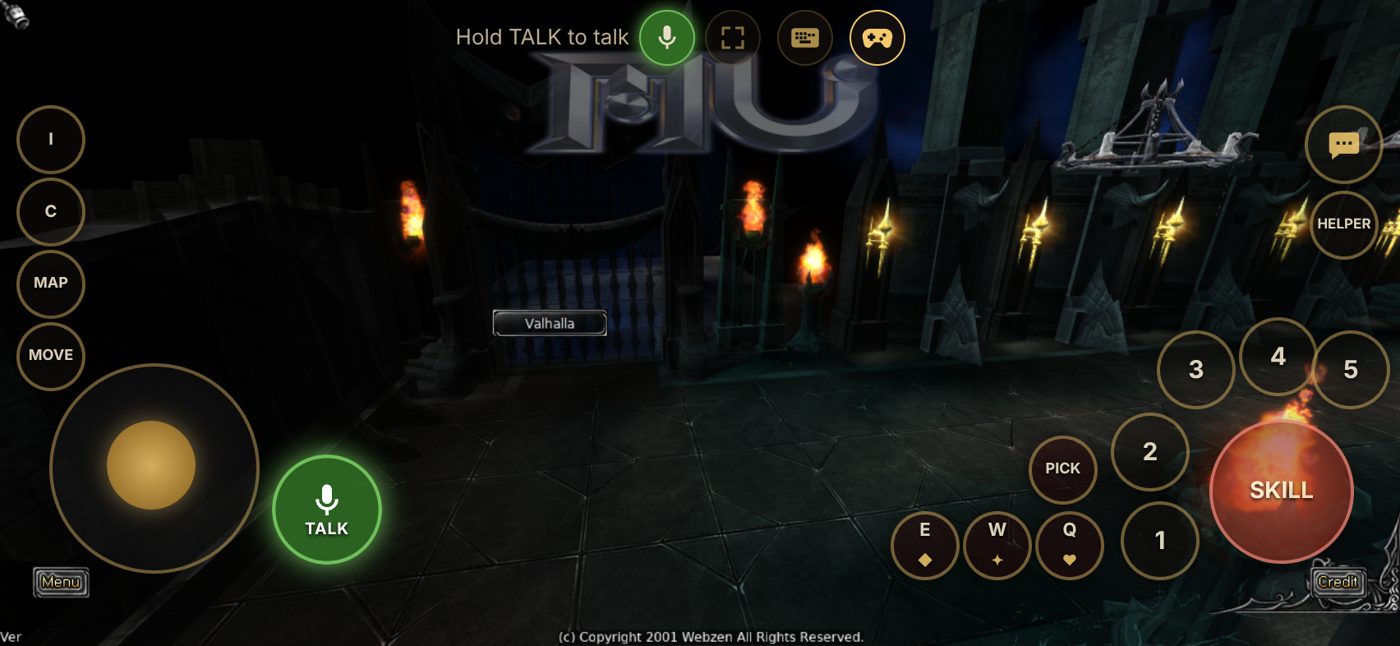
- Hold the microphone button (Hold to talk) to speak to the players near you; let go to stop.
- The first time, allow the microphone when your phone asks.
On a computer, hold the ` key (above Tab) to talk.
- The first time you enter the game you are asked whether to turn voice chat on. With it on you hear your party, your guild and players near you; nobody hears you until you hold the talk button.
- A small speaker with sound waves shows over the character of whoever is talking.
- Turn voice chat on or off any time with the microphone button at the top of the screen.
Battery & heat
- Phones start with the battery saver on: the game draws 30 frames a second instead of 60–120, uses fewer effects and the Classic look. It uses less battery and the phone stays cooler.
- Change it in game: Options → Graphics → Battery & heat. The Battery saver switch turns every row under it on or off; each row also changes on its own.
- Slow down when idle: after no touch for 30 seconds (or 15 s, 1 or 2 minutes) the game draws 10 frames a second, and is back to normal on the next touch. Never while you fight or MU Helper runs.
- Want the best picture instead? Turn Battery saver off: no frame limit, all effects, Enhanced graphics.
← All guides · Updated: 2026-11-10